

Notice
Recent Posts
Recent Comments
Link
| 일 | 월 | 화 | 수 | 목 | 금 | 토 |
|---|---|---|---|---|---|---|
| 1 | 2 | 3 | 4 | 5 | 6 | |
| 7 | 8 | 9 | 10 | 11 | 12 | 13 |
| 14 | 15 | 16 | 17 | 18 | 19 | 20 |
| 21 | 22 | 23 | 24 | 25 | 26 | 27 |
| 28 | 29 | 30 |
Tags
- 피코프레소 #ITOP40
- ESP32 #Arduino
- macro lens #EF #FD
- VNC #Firewall #CenOS7 #VMware
- x99 itx/ac
- k6 #피코프레소
- Java #MacBook #macOS
- Arduino #Wall Plotter
- XTU #Virtual Machine System
- Oh My Zsh #macOS
- 다이슨 #배터리
- Arduino #PlatformIO #macOS
- 매크로렌즈 #리버스링
- TensorFlow #Python #pip
- cycloidal #rv reducer
- egpu #aorus gaming box #gtx1070 #tb3
- fat32 #rufus
- Xeon #E5-2680
- razer #deathadder #viper #g102
- VirtualBox #VMware
- Laptop #CPUID
- Linux #VirtualBox
- Dell #Latitude #BIOS
- Tarantula #3D 프린터
- Octave #homebrew #macOS
- CM-EF-NEX
- VMware #Shared Folder
- centos7 #yum update #/boot
- Callaway #Mavrik #Epic Flash
- ITOP40
Archives
- Today
- Total
얕고 넓게
[AI.ML] MediaPipe Pose 본문
2026.05.07
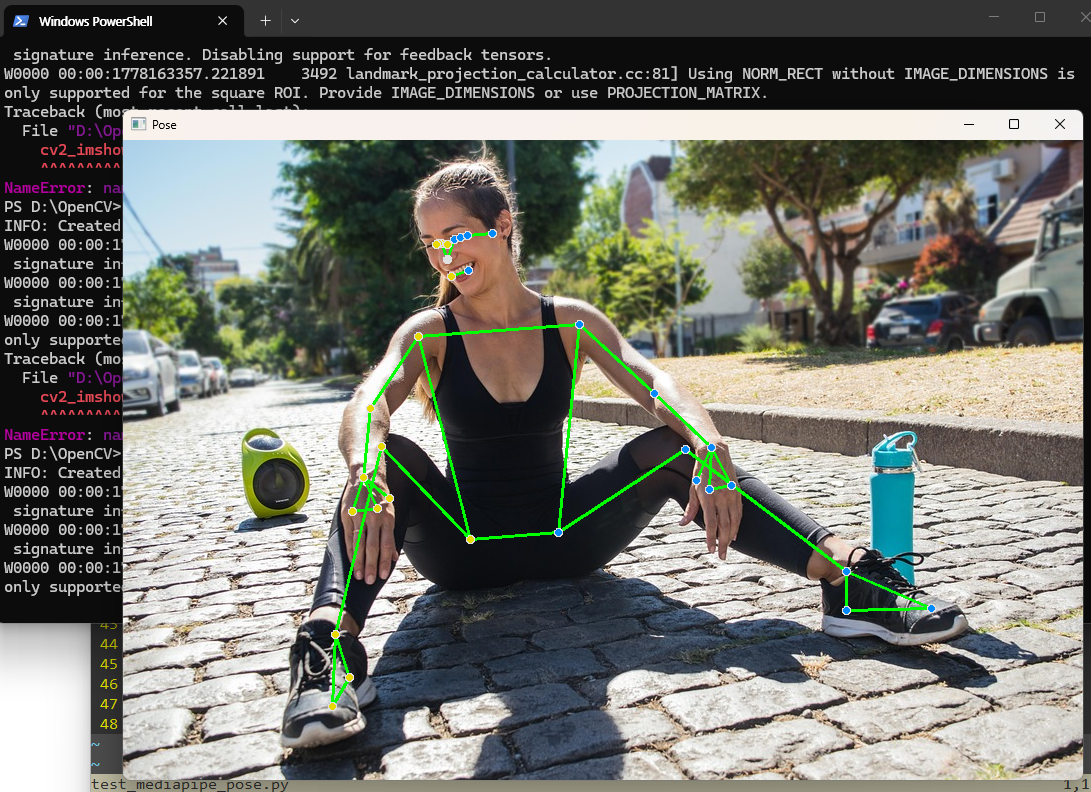
골프 스윙 분석을 위해 OpenCV 를 써볼까 해서 AI 물어 봤더니,
Mediapipe를 추천한다.
https://github.com/google-ai-edge/mediapipe/blob/master/docs/solutions/pose.md
mediapipe/docs/solutions/pose.md at master · google-ai-edge/mediapipe
Cross-platform, customizable ML solutions for live and streaming media. - google-ai-edge/mediapipe
github.com
구글에서 포즈를 인식하는 모델을 이미 만들어 놓았다.
AI 가 알려준 Python 코드를 직접 사용하니 에러가 발생.
import cv2
import mediapipe as mp
from mediapipe.tasks import python
from mediapipe.tasks.python import vision

# 모델 파일 다운로드 (pose_landmarker_lite.task 등)
# https://developers.google.com/mediapipe/solutions/vision/pose_landmarker

base_options = python.BaseOptions(model_asset_path='pose_landmarker_lite.task')
options = vision.PoseLandmarkerOptions(base_options=base_options,
                                       output_segmentation_masks=False)
detector = vision.PoseLandmarker.create_from_options(options)

cap = cv2.VideoCapture(0)

while cap.isOpened():
    ret, frame = cap.read()
    if not ret:
        break

    # Mediapipe는 RGB 입력 필요
    mp_image = mp.Image(image_format=mp.ImageFormat.SRGB, data=frame)

    # 포즈 추정 실행
    result = detector.detect(mp_image)

    # 결과 출력 (예: 첫 번째 사람의 관절 좌표)
    if result.pose_landmarks:
        for landmark in result.pose_landmarks[0]:
            x, y, z = landmark.x, landmark.y, landmark.z
            cv2.circle(frame, (int(x * frame.shape[1]), int(y * frame.shape[0])), 5, (0,255,0), -1)

    cv2.imshow('Pose Detection', frame)

    if cv2.waitKey(10) & 0xFF == ord('q'):
        break

cap.release()
cv2.destroyAllWindows()
이미 코랩에... 이것은 무엇?
[MediaPipe_Python_Tasks]_Pose_Landmarker.ipynb
Run, share, and edit Python notebooks
colab.research.google.com
mediapipe 설치
모델 다운로드
curl -o "D:\OpenCV\pose_landmarker_heavy.task" https://storage.googleapis.com/mediapipe-models/pose_landmarker/pose_landmarker_heavy/float16/1/pose_landmarker_heavy.task
Visualization Utility???
테스트 이미지 다운로드
curl -o image.jpg https://...
중간에 에러가 난다.
모델 이름이 다르고, 함수 이름이 다르고
최종 본
import numpy as np
from mediapipe.tasks.python.vision import drawing_utils
from mediapipe.tasks.python.vision import drawing_styles
from mediapipe.tasks.python import vision


def draw_landmarks_on_image(rgb_image, detection_result):
  pose_landmarks_list = detection_result.pose_landmarks
  annotated_image = np.copy(rgb_image)

  pose_landmark_style = drawing_styles.get_default_pose_landmarks_style()
  pose_connection_style = drawing_utils.DrawingSpec(color=(0, 255, 0), thickness=2)

  for pose_landmarks in pose_landmarks_list:
    drawing_utils.draw_landmarks(
        image=annotated_image,
        landmark_list=pose_landmarks,
        connections=vision.PoseLandmarksConnections.POSE_LANDMARKS,
        landmark_drawing_spec=pose_landmark_style,
        connection_drawing_spec=pose_connection_style)

  return annotated_image

# STEP 1: Import the necessary modules.
import cv2
import mediapipe as mp
from mediapipe.tasks import python
from mediapipe.tasks.python import vision

# STEP 2: Create an PoseLandmarker object.
base_options = python.BaseOptions(model_asset_path='pose_landmarker_heavy.task')
options = vision.PoseLandmarkerOptions(
    base_options=base_options,
    output_segmentation_masks=True)
detector = vision.PoseLandmarker.create_from_options(options)

# STEP 3: Load the input image.
image = mp.Image.create_from_file("image.jpg")

# STEP 4: Detect pose landmarks from the input image.
detection_result = detector.detect(image)

# STEP 5: Process the detection result. In this case, visualize it.
annotated_image = draw_landmarks_on_image(image.numpy_view(), detection_result)
#cv2_imshow(cv2.cvtColor(annotated_image, cv2.COLOR_RGB2BGR))
cv2.imshow("Pose", cv2.cvtColor(annotated_image, cv2.COLOR_RGB2BGR))
cv2.waitKey(0)
cv2.destroyAllWindows()
'IT > AI.ML' 카테고리의 다른 글
| [AI] ComfyUI: Face Swap (0) | 2026.04.21 |
|---|---|
| [AI] LLamaFactory 설치 @Windows (0) | 2026.03.13 |
| [AI] Hailo 8L @Windows 11 (0) | 2026.03.12 |
| [AI] LLamaFactory 설치 및 FT 성공 정리 (0) | 2026.03.01 |
| [AI] ComfyUI 4/2 @Windows11 (0) | 2025.10.02 |
'IT/AI.ML' Related Articles
more


