

| 일 | 월 | 화 | 수 | 목 | 금 | 토 |
|---|---|---|---|---|---|---|
| 1 | 2 | 3 | 4 | 5 | 6 | |
| 7 | 8 | 9 | 10 | 11 | 12 | 13 |
| 14 | 15 | 16 | 17 | 18 | 19 | 20 |
| 21 | 22 | 23 | 24 | 25 | 26 | 27 |
| 28 | 29 | 30 |
- k6 #피코프레소
- ITOP40
- x99 itx/ac
- XTU #Virtual Machine System
- VirtualBox #VMware
- ESP32 #Arduino
- Arduino #PlatformIO #macOS
- CM-EF-NEX
- egpu #aorus gaming box #gtx1070 #tb3
- TensorFlow #Python #pip
- Laptop #CPUID
- VNC #Firewall #CenOS7 #VMware
- centos7 #yum update #/boot
- 다이슨 #배터리
- Oh My Zsh #macOS
- Java #MacBook #macOS
- Callaway #Mavrik #Epic Flash
- 피코프레소 #ITOP40
- Arduino #Wall Plotter
- VMware #Shared Folder
- razer #deathadder #viper #g102
- Xeon #E5-2680
- Octave #homebrew #macOS
- Dell #Latitude #BIOS
- 매크로렌즈 #리버스링
- Linux #VirtualBox
- fat32 #rufus
- Tarantula #3D 프린터
- macro lens #EF #FD
- cycloidal #rv reducer
- Today
- Total
얕고 넓게
[AI] ComfyUI 1/2 @Windows11 본문
2025.09.30
어제 유튜드에서 발견한 정보
https://www.youtube.com/watch?v=WDZNTN48XOo&t=811s
동영상을 보다가 마음에 들어서 내용을 확인해 보니 Notion에 정리가 잘되어 있다.
✅2.설치 통합(5070TI) ComfyUI + xFormers + SageAttention 설치 & 실행 가이드 (Python 3.11 / PyTorch 2.8 / CUDA 12.8)
🔹5070TI아니신분들도 잘 설치되는거 같아요
www.notion.so
내가 전에 QWen설치 했을 때는 UV 환경에 에러가 많이 났었다.
따라해보니 잘된다.
cd D:\AI
git clone https://github.com/comfyanonymous/ComfyUI
python -m venv venv_comfyui
.\venv_comfyui\Scripts\activate
cd comfyUI
pip install -r requirements.txt

ComfyUI\custom_nodes
git clone https://github.com/ltdrdata/ComfyUI-Manager
cd ComfyUI-Manager
pip install -r requirements.txt
manager 실행하라는데 manager.py가 안보인다?
아무튼 PyTorch설치
pip install torch==2.8.0+cu128 torchvision==0.23.0+cu128 torchaudio==2.8.0 --index-url https://download.pytorch.org/whl/cu128
그냥 ComfyUI에서 python main.py 실행하니 잘된다.
(venv_comfyui) PS D:\AI\ComfyUI> python .\main.py
[START] Security scan
[DONE] Security scan
## ComfyUI-Manager: installing dependencies done.
** ComfyUI startup time: 2025-09-30 21:27:16.623
** Platform: Windows
** Python version: 3.13.7 (tags/v3.13.7:bcee1c3, Aug 14 2025, 14:15:11) [MSC v.1944 64 bit (AMD64)]
** Python executable: D:\AI\venv_comfyui\Scripts\python.exe
** ComfyUI Path: D:\AI\ComfyUI
** ComfyUI Base Folder Path: D:\AI\ComfyUI
** User directory: D:\AI\ComfyUI\user
** ComfyUI-Manager config path: D:\AI\ComfyUI\user\default\ComfyUI-Manager\config.ini
** Log path: D:\AI\ComfyUI\user\comfyui.log

Prestartup times for custom nodes:
   6.4 seconds: D:\AI\ComfyUI\custom_nodes\ComfyUI-Manager

Checkpoint files will always be loaded safely.
Total VRAM 8192 MB, total RAM 32619 MB
pytorch version: 2.8.0+cu128
Set vram state to: NORMAL_VRAM
Device: cuda:0 NVIDIA GeForce GTX 1070 with Max-Q Design : cudaMallocAsync
Using pytorch attention
Python version: 3.13.7 (tags/v3.13.7:bcee1c3, Aug 14 2025, 14:15:11) [MSC v.1944 64 bit (AMD64)]
ComfyUI version: 0.3.61
ComfyUI frontend version: 1.26.13
[Prompt Server] web root: D:\AI\venv_comfyui\Lib\site-packages\comfyui_frontend_package\static
### Loading: ComfyUI-Manager (V3.37)
[ComfyUI-Manager] network_mode: public
### ComfyUI Version: v0.3.61-1-g6e079abc | Released on '2025-09-29'

Import times for custom nodes:
   0.0 seconds: D:\AI\ComfyUI\custom_nodes\websocket_image_save.py
   0.8 seconds: D:\AI\ComfyUI\custom_nodes\ComfyUI-Manager

[ComfyUI-Manager] default cache updated: https://raw.githubusercontent.com/ltdrdata/ComfyUI-Manager/main/model-list.json
[ComfyUI-Manager] default cache updated: https://raw.githubusercontent.com/ltdrdata/ComfyUI-Manager/main/custom-node-list.json
[ComfyUI-Manager] default cache updated: https://raw.githubusercontent.com/ltdrdata/ComfyUI-Manager/main/extension-node-map.json
[ComfyUI-Manager] default cache updated: https://raw.githubusercontent.com/ltdrdata/ComfyUI-Manager/main/alter-list.json
[ComfyUI-Manager] default cache updated: https://raw.githubusercontent.com/ltdrdata/ComfyUI-Manager/main/github-stats.json
Context impl SQLiteImpl.
Will assume non-transactional DDL.
No target revision found.
Starting server

To see the GUI go to: http://127.0.0.1:8188
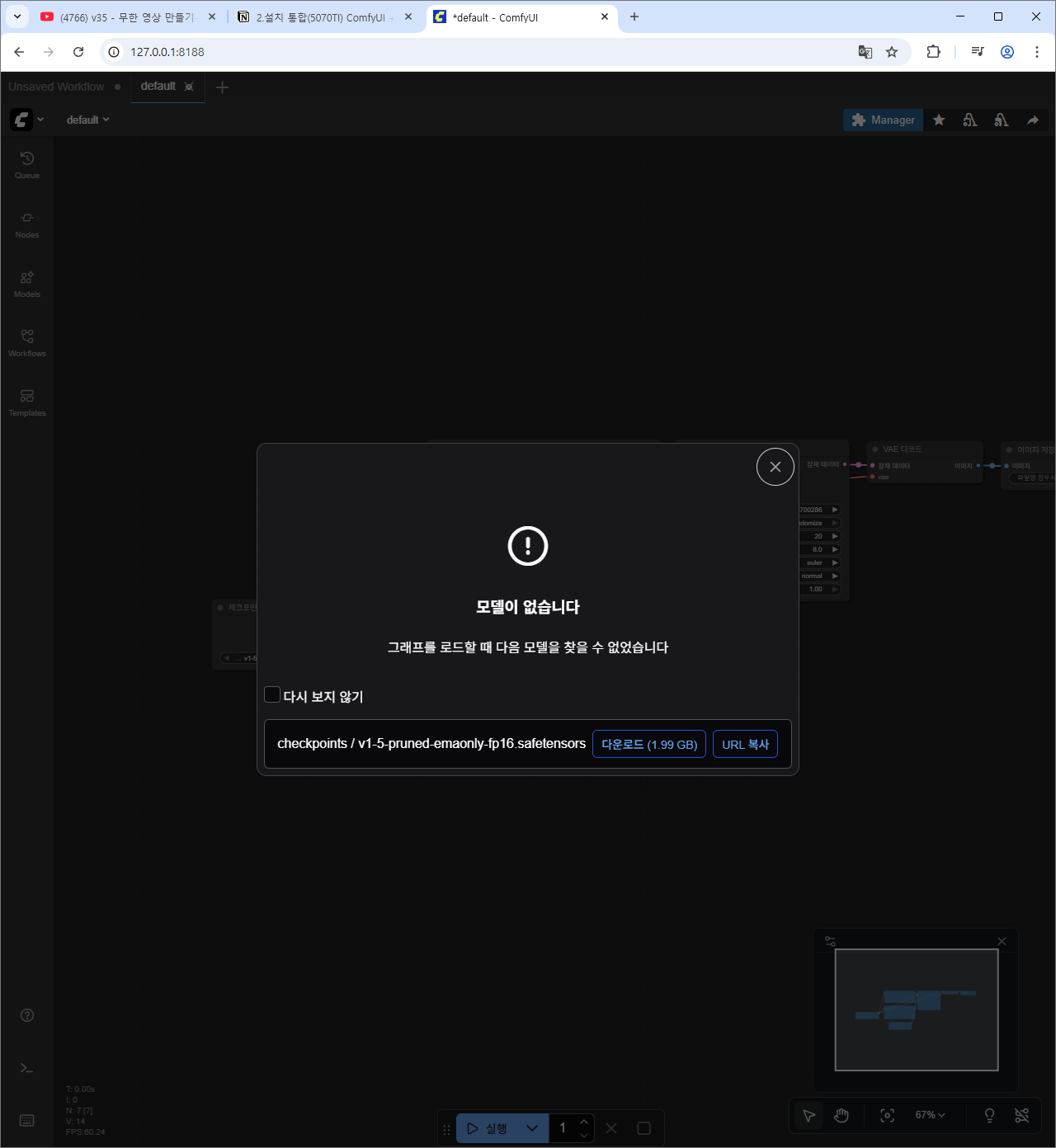
일단 Triton, xFormers, SageAttention 2.2 등은 나중에
그냥 checkpoint만 다운받아 본다.
https://youtu.be/4H7mO_lE0CA?si=r8DxcVpHzYnvQncl
**** ComfyUI 설치순서 일단 필수 프로그램 설치 1. Nvidia 앱 최신버젼 설치
https://www.nvidia.com/ko-kr/software...
2. CUDA Toolkit 12.8이 현재 젤 안정적이라함
https://developer.nvidia.com/cuda-12-...
3. Visual Studio 2022 빌드 도구 (파이선등 다른 프로그램실행시 필요)
https://visualstudio.microsoft.com/ko...
4. Git for Windows (도스창에서 깃 설치시 필요 일단 무조건 다운)
https://git-scm.com/downloads/win
재부팅 ========================================================
윈도우 검색란에 환경변수 입력, 입력후 재부팅 시스템 환경변수 입력, 새로만들기, 변수이름 CC, 변수값 밑에 찾아보기클릭후 아래. C:\Program Files (x86)\Microsoft Visual Studio\2022\BuildTools\VC\Tools\MSVC\14.44.35207\bin\Hostx64\x64\cl.exe
--------------------------------------------------------------------------------------------------
FFMPEG설치
https://ffmpeg.org/
화일 다운후 원하는 곳에 압축푼후 환경변수 등록 윈도우 옆에 검색창에 시스템 환경 변수 입력후 환경변수 클릭 창뜨면 환경변수클릭, 밑에 Path 찾아서 편집 클릭, 새로만들기 눌러서 ffmpeg 설치된 디렉토리 넣기, 예)H:\ffmpeg\bin 재부팅 ===========================================================
5. Python 3.12.10 (Windows) 현재 젤 안정적이라함
https://www.python.org/downloads/wind...
===========================================================
DOS 창 띄우기 (윈도우 우측키 눌르고 실행 눌러서 CMD 입력) 1. ComfyUI 설치하기 git clone
https://github.com/comfyanonymous/Com...
2. ComfyUI 다운받았기에 인스톨해야함 (필수 구성요소 설치) pip install -r requirements.txt 다 설치됐으면 실행한번하기 실행 명령어. python main.py 3. torch 삭제 pip uninstall torch CUDA 12.8에 맞는 torch 재설치 명령어 pip install --pre torch torchvision torchaudio --index-url
https://download.pytorch.org/whl/nigh...
------------------------------------------------------------------------------
4. Triton 최신 버전 설치하기 pip install -U --pre triton-windows
5. SageAttention 설치하기 (이게 꼭 잘 설치되어야 속도를 높이고 여러가지 좋다) pip install sageattention 6. ComfyUI Manager 설치하기 (무조건 필수 작업할때 유용하다) ComfyUI 에 Custom 폴더에 들어가서 CMD입력후 명령어 실행 git clone
https://github.com/Comfy-Org/ComfyUI-...
================================================
실행파일 만들기 @echo off python H:\ComfyUI\main.py --use-sage-attention --windows-standalone-build --auto-launch --cuda-malloc --reserve-vram 1.6 pause
=============================================
python과 torch 버전 확인하기 명령어 “파이썬 설치 경로명\python.exe” —-version “파이썬 설치 경로명\python.exe” -m pip show torch Torch 관련 버전 오류 시 torch 다운그레이드 명령어 위에 3번과 같다 (현재 Nunchaku 에 사용됨 : 저는 5070ti사용하는데 안되네요 ㅠㅠ 5천번대 빼고는 다 되지 않을까 합니다.) pip install --pre torch==2.8.0.dev20250403+cu128 torchvision torchaudio --index-url
https://download.pytorch.org/whl/nigh...
==============================================
필요시 Nunchaku .whl 파일 설치하기 명령어
https://huggingface.co/mit-han-lab/nu...
위 싸이트에 접속해서 본인 파이선과 토치버젼 확인명령어 DOS창에 입력하여 확인후 화일 다운 python -m pip install [복사한 .whl 링크넣기] 예) python -m pip install
https://huggingface.co/mit-han-lab/nu...
잘설치되었는지 확인해본다 확인 명령어 python -c "import nunchaku" ==========================================
Nunchaku 테스트시 필요한 파일 링크주소 ComfyUI\models\text_encoders
https://huggingface.co/comfyanonymous...
https://huggingface.co/comfyanonymous...
ComfyUI\models\vae
https://huggingface.co/ffxvs/vae-flux...
ComfyUI\models\loras
https://huggingface.co/alimama-creati...
ComfyUI\models\unet
https://huggingface.co/mit-han-lab/sv...
마지막은 unet또는 Diffusion폴더에 폴더를 만들어서 폴더명을 svdq-int4-flux.1-dev 복사해서 바꾼다 위에 주소에 들어가면 이름이 있다. 그 폴더 안에 위에 접속한 주소에 있는 모든 파일들을 다운받아 설치하고 Nunchaku를 테스트해보면 된다. ==========================================
체크포인트 받는 참조 주소
https://civitai.com/
https://prompthero.com/
https://civitai.com/models/4384/dreamshaper
DreamShaper - 8 | Stable Diffusion Checkpoint | Civitai
DreamShaper - V∞! Please check out my other base models , including SDXL ones! Check the version description below (bottom right) for more info and...
civitai.com
https://civitai.com/api/download/models/128713?type=Model&format=SafeTensor&size=pruned&fp=fp16
다운 받아서 ComfyUI/models/checkpoints 에 저장
blackhole 생성


'IT > AI.ML' 카테고리의 다른 글
| [AI] ComfyUI 3/2 @Windows11 (0) | 2025.10.02 |
|---|---|
| [AI] ComfyUI 2/2 @Windows11 (0) | 2025.09.30 |
| [AI] TG Webui: 모델 다운로드, 로드, 채팅 @Windows11 (2) | 2025.08.12 |
| [AI] 개발 환경 이동 @Windows11 (0) | 2025.08.11 |
| [AI] Qwen-Image @Windows11 (0) | 2025.08.08 |

